How to Send a Plumbing Fleet DOT Service Agreement in GHL
This guide explains the step-by-step process for sending a Plumbing Fleet DOT Service Agreement to a client using GHL.
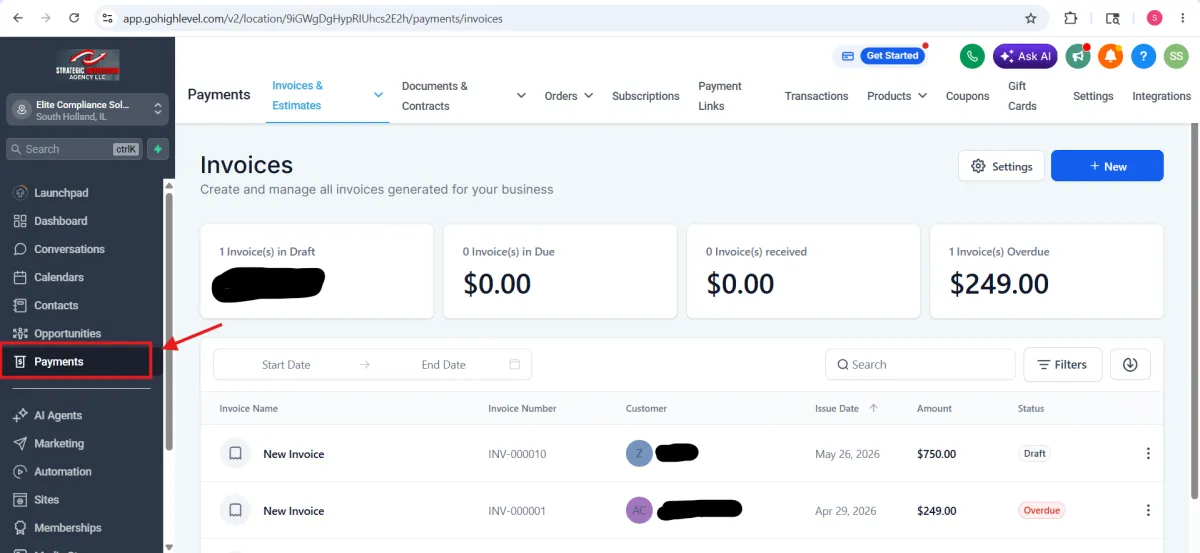
Step 1 — Go to the Payments Section
Login to your GHL dashboard.
From the left sidebar menu:
Open Payments
Navigate to the payment dashboard
Step 2 — Open Documents & Contracts
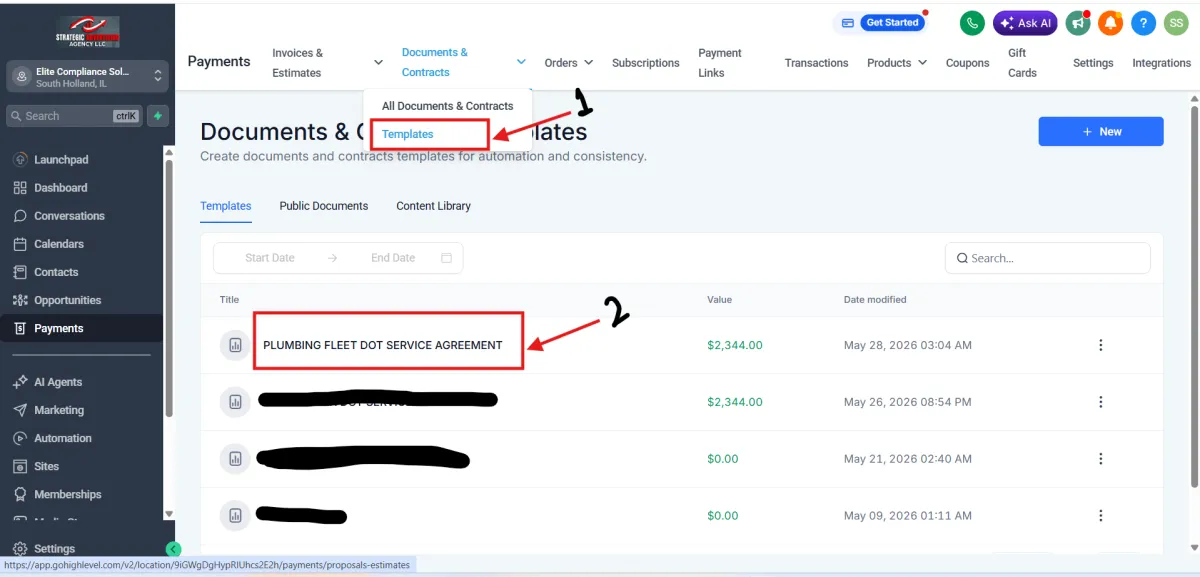
Click on Documents & Contracts
This section contains all agreement templates and contracts
Select Templates to access all agreement and contract templates.
Step 3 — Select the Plumbing Fleet DOT Service Agreement Template
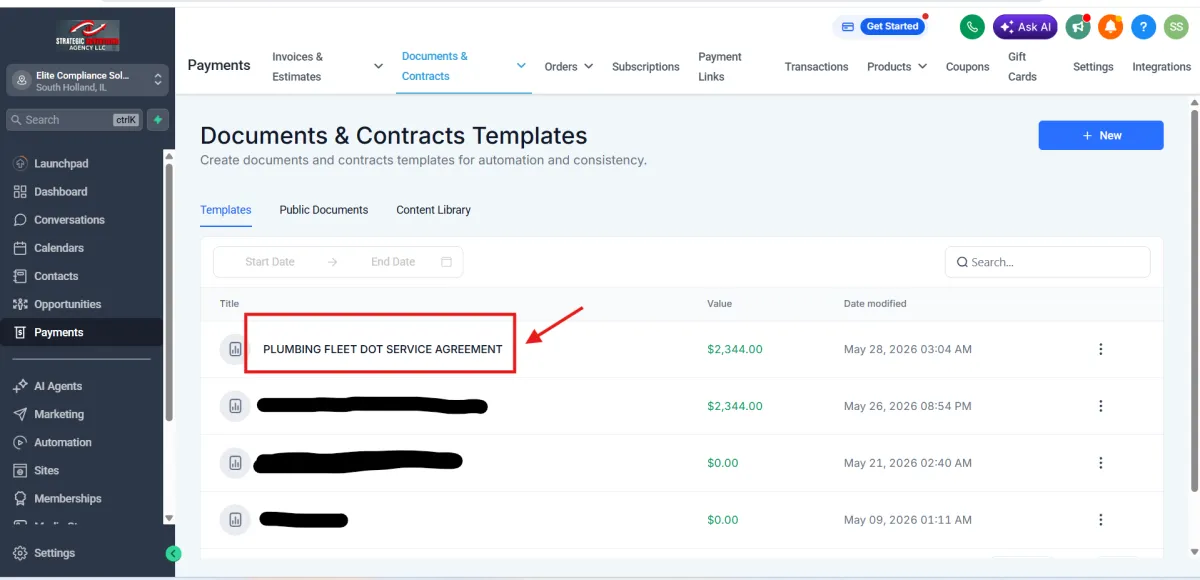
Locate the Plumbing Fleet DOT Service Agreement template from the document list.
Click on the template to open the agreement details
Step 4 — Select the Client
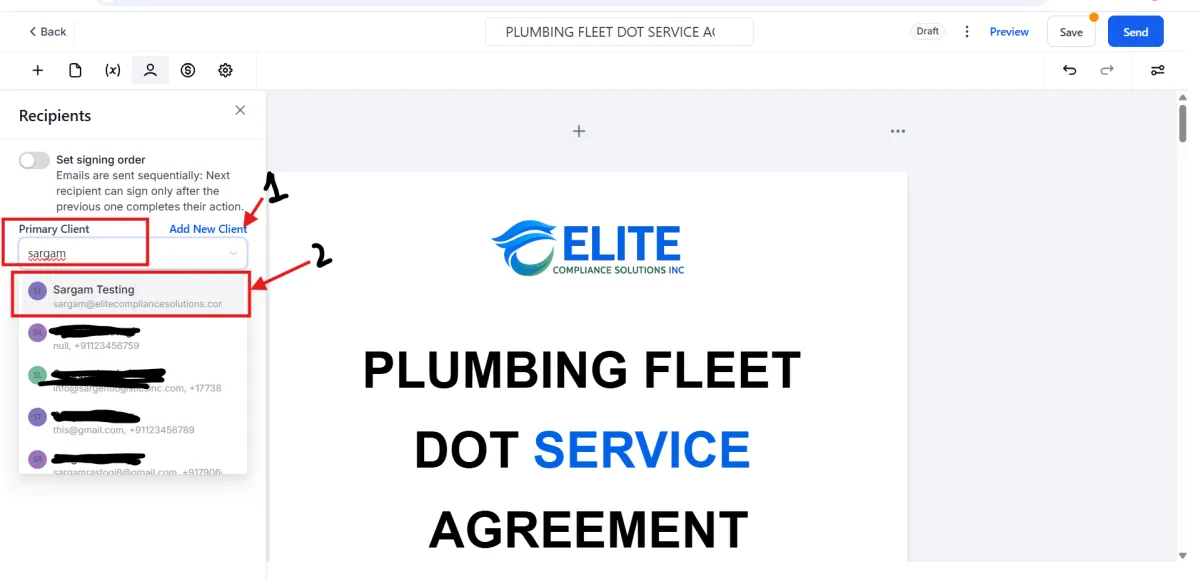
Go to the Recipients section on the left panel.
Click on the Contacts search box.
Search for the client name or email address.
Select the correct client from the contact list.
Step 5 — Send the Agreement to the Client
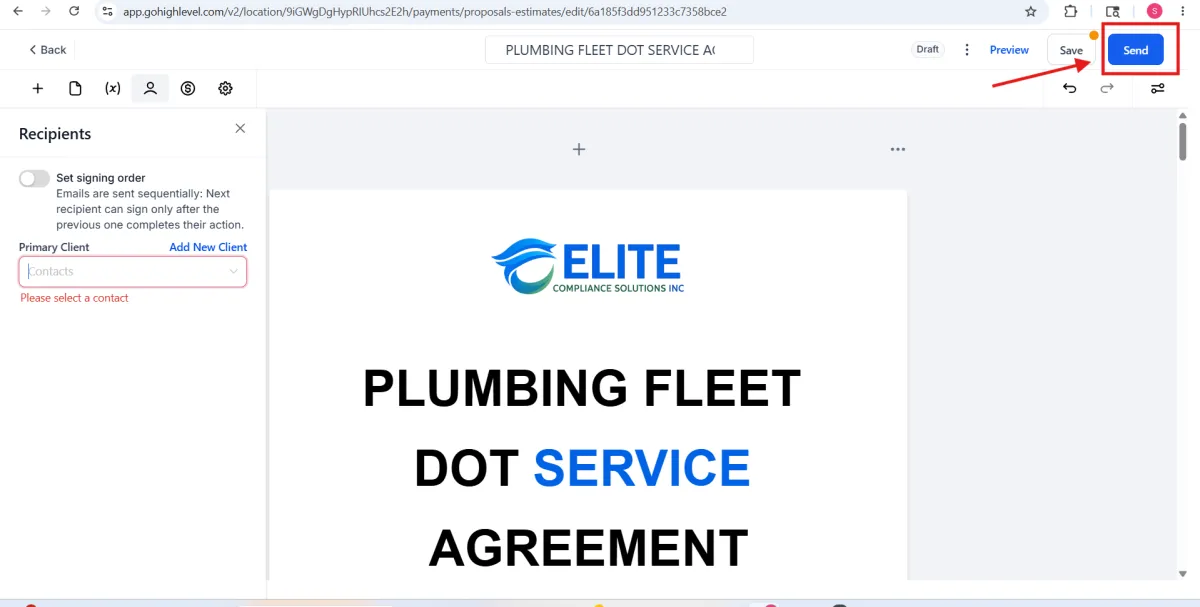
Review the agreement details and recipient information.
Make sure the correct client is added as the Primary Client.
Click the Send button located in the top-right corner.
Step 6 — Send the Agreement
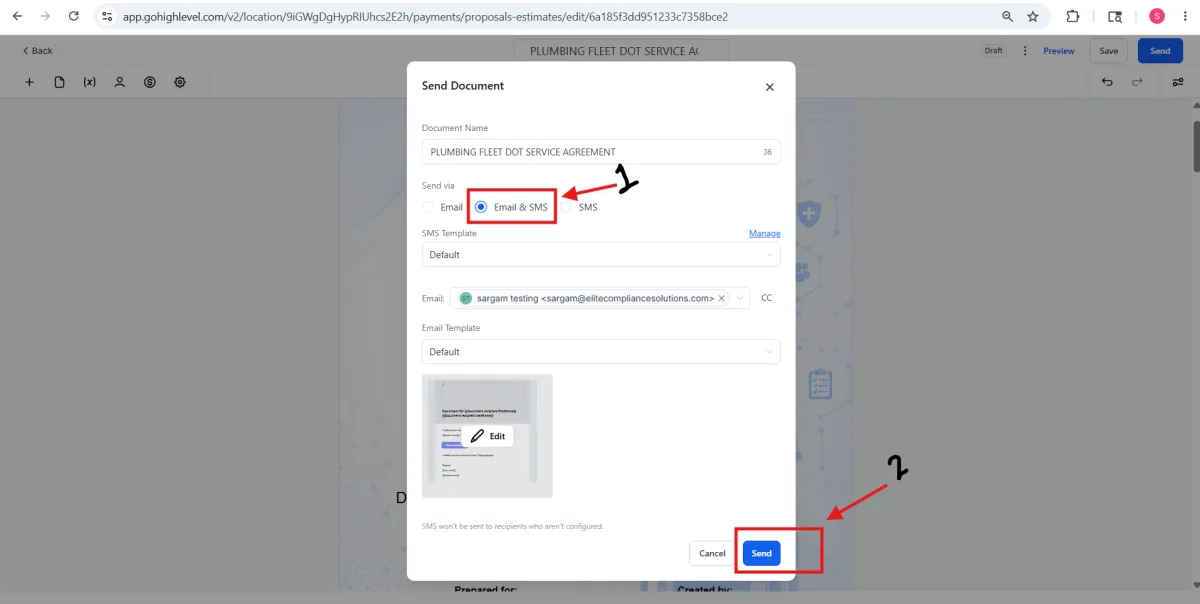
Select Email & SMS as the sending option.
Verify the client email and template details.
Click the final Send button to deliver the agreement.